키 배치 설정 by Unity
이 글은 기존 블로그의 원문에서 가져왔습니다. 원문 작성일: 2021-08-18
1. UI
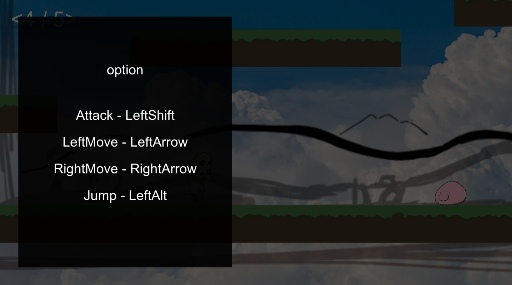
일단 위와 같이 UI를 만들어줬다.
메뉴의 구조와 여는 방법은 Canvas에서 메뉴 만들기를 참고하면 된다.
2. class
using System.Collections;
using System.Collections.Generic;
using UnityEngine;
using UnityEngine.UI;

public class KeySettingManager : MonoBehaviour
{

    public static KeyCode attack_keyCode = KeyCode.LeftShift; //다른 곳에서 편하게 사용할 수 있도록 static으로 변수를 설정해준다.
    public static KeyCode right_keyCode = KeyCode.RightArrow;
    public static KeyCode left_keyCode = KeyCode.LeftArrow;
    public static KeyCode jump_keyCode = KeyCode.LeftAlt;

    public GameObject textAttack;//버튼들의 하위에 있는 text들을 드레그로 담아줬다.
    public GameObject textLeft;
    public GameObject textRight;
    public GameObject textJump;

    private Event e;

    private static int RIGHT = 1;
    private static int LEFT = 2;
    private static int JUMP = 3;
    private static int ATTACK = 4;
    private static int NONE = 0;

    private int curInformation = NONE;

    public void changeAttackKey() //각각 버튼에 넣어줄 함수들이다.
    {
        textAttack.GetComponent<Text>().text = "Attack -";
        curInformation = ATTACK;
    }

    public void changeLeftKey()
    {
        textLeft.GetComponent<Text>().text = "LeftMove -";
        curInformation = LEFT;
    }

    public void changeRightKey()
    {
        textRight.GetComponent<Text>().text = "RightMove -";
        curInformation = RIGHT;
    }

    public void changeJumpKey()
    {
        textJump.GetComponent<Text>().text = "Jump -";
        curInformation = JUMP;
    }

    void Update()
    {
        if (curInformation == NONE)
        {

        } else if (curInformation == ATTACK) //선택할 때
        {
            if (this.e.isKey)
            {
                attack_keyCode = e.keyCode; //위에서 만든 변수에 입력 받은 것을 저장한다.
                textAttack.GetComponent<Text>().text = "Attack - " + attack_keyCode.ToString(); //text에도 추가해준다.
                curInformation = NONE;
            }
        } else if (curInformation == RIGHT)
        {
            if (this.e.isKey)
            {
                right_keyCode = e.keyCode;
                textRight.GetComponent<Text>().text = "RightMove - " + right_keyCode.ToString();
                curInformation = NONE;
            }
        } else if (curInformation == LEFT)
        {
            if (this.e.isKey)
            {
                left_keyCode = e.keyCode;
                textLeft.GetComponent<Text>().text = "LeftMove - " + left_keyCode.ToString();
                curInformation = NONE;
            }
        } else if (curInformation == JUMP)
        {
            if (this.e.isKey)
            {
                jump_keyCode = e.keyCode;
                textJump.GetComponent<Text>().text = "Jump - " + jump_keyCode.ToString();
                curInformation = NONE;
            }
        }
    }

    private void OnGUI() //이 함수 안에서 Event.current를 받아올 수 있다.
    {
        this.e = Event.current;
    }
}
9~12 - static 변수를 넣어줘서 다른 class에서 [KeySettingManager.attack_keyCode] 이런식으로 사용할 수 있다.
14~17 - Button의 자식 오브젝트인 text들을 상황에 따라 바꿔주기 위해서 여기 담아준다. (inspector에서 넣어줬다.)
29~33 - 버튼을 눌렀을 때 호출할 함수이고 그 버튼을 누르고 키보드로 원하는 키를 누르는 방식으로 키를 할당해줄 것이다. curInformation = ATTACK를 이용해서 어떤 키를 설정하고 있는지 저장해준다.
57~91 - curInformation를 이용해서 입력 받은 키를 알맞은 키에 저장해준다.
93~96 - 이 함수에서 Event를 받아올 수 있다.
이 class를 keySetting UI를 만든 panel에 연결해줬다.
3. Button이랑 연결
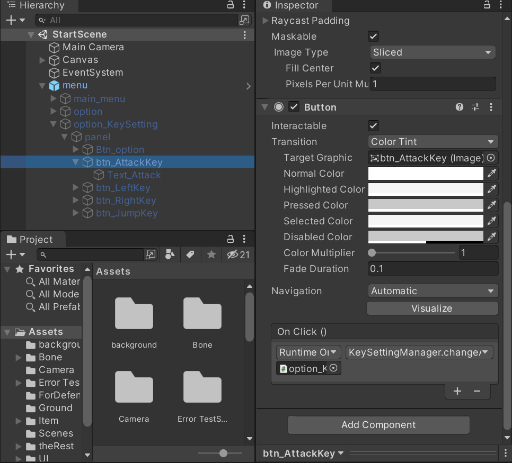
위 사진과 같이 Button의 OnClick()에서 위에서 만든 class를 담고 있는 panel(여기에서는 option_KeySetting type은 panel)를 넣어주고 오른쪽의 dropDown에서 알맞게 함수를 할당해줬다.
4. 오류 해결
하지만 이렇게 하면 알파벳이나 숫자 같은 printableKey들은 제대로 입력되지 않고 None을 반환했다.
if (this.e.isKey)
{
    attack_keyCode = e.keyCode;
    if (attack_keyCode.ToString() != "None")
    {
        textAttack.GetComponent<Text>().text = "Attack - " + attack_keyCode.ToString();
        curInformation = NONE;
    }
}
그래서 60~65 부분을 위와 같이 None을 반환할 때는 if문을 이용해서 걸려줘서 해결해줬다.